The usual way, you copy, switch windows, paste, switch back, and start again for the next field. With PasteHop, you copy everything first, then switch once.
The usual way3 fields: 5 window switches
Contact ⌘C
Form ⌘V
Contact ⌘C
Form ⌘V
Contact ⌘C
Form ⌘V
With PasteHop3 fields, or 20: 1 window switch
Contact ⌘C⌘C⌘C
Form ⌘V⌘V⌘V
Four copies, one window switch, four pastes.
A 22-second demo
Nothing new to learn.
The same ⌘C, the same ⌘V. PasteHop only changes what the next ⌘V pastes.
(1)
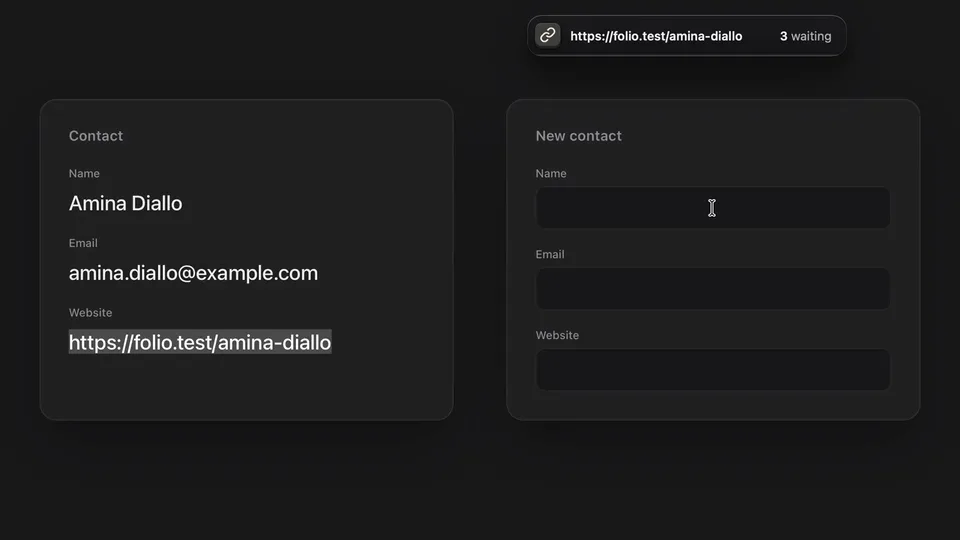
Copy everything you need.
Each copy waits its turn. A small bar shows the last one, and counts how many are waiting.
(2)
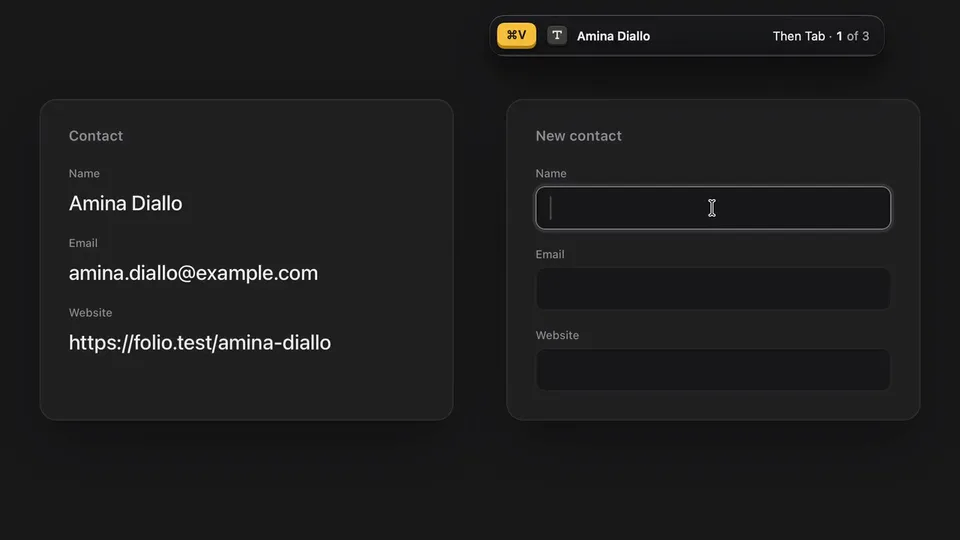
Click where the first one goes.
The key in the bar turns amber: your next ⌘V pastes your first copy.
(3)
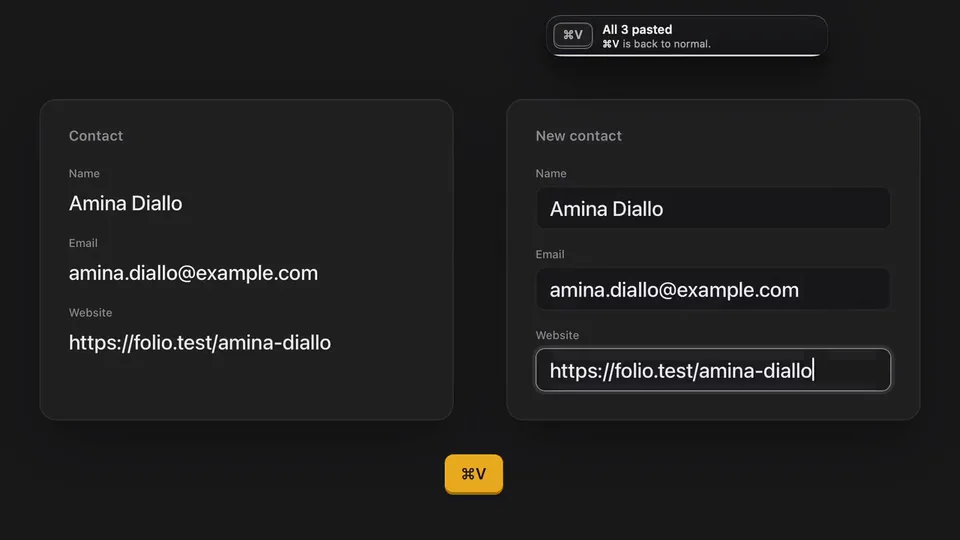
Press ⌘V in each field.
Each ⌘V pastes the next copy. Move to the next field yourself, or let Pro press Tab for you. After the last one, the bar says so, and ⌘V works as usual again.
What the color of the key tells you.
In the PasteHop bar
⌘V
Amber. The next ⌘V pastes your next copy.
⌘V
Amber outline. PasteHop is on, and nothing is copied yet.
⌘V
No color.⌘V works as usual.
⌘V
Pressed. PasteHop is pasting for you.
⌥⇧⌘FOption, Shift, Command and F together switch PasteHop on or off at any time. The switch is called Flow.
See what is waiting. Change the order.
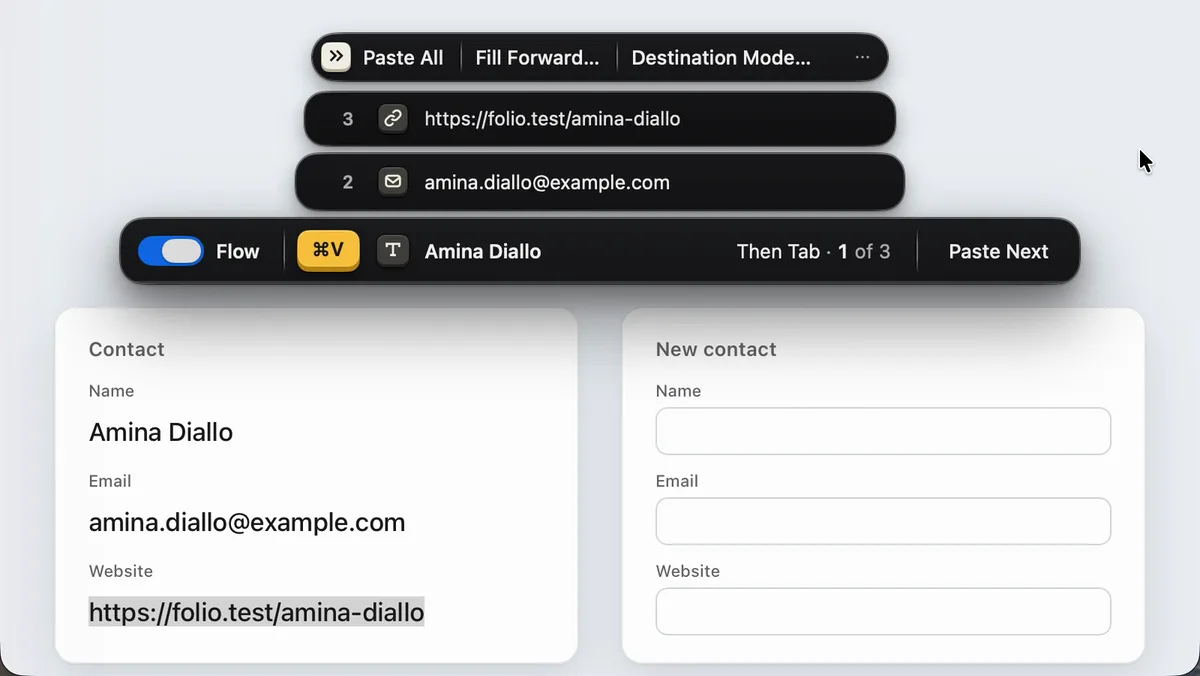
Click the bar and your copies open above it, numbered in the order they will be pasted. Drag a copy to another place and the next ⌘V follows. All of this is free.
The bar, your copies above it, and the row of Pro commands on top. Then Tab, a Pro setting, is on here.
Reorder
Drag a copy to another place in the order. The order of your ⌘V follows.
Set as Next
Any copy can be pasted next.
Reverse Order
The last copy becomes the first.
Start Over
Once everything is pasted, everything waits again: the same copies, for a second form.
Split
One copy becomes several, cut at each line, tab or comma.
Find
With many copies, the magnifier keeps only the copies that match. Return puts the first one next.
Drop in
Drop text, a link or a file on the bar and it joins your copies. Your clipboard is not touched.
Clear Flow
Removes all your copies. For 10 minutes, Bring Back restores it.
Four looks, all free.
Settings › General › Look
Contact detailsThanks for the call this morning.Here are my details for the sheet.Name: Amina DialloEmail: [email protected]Website: folio.test/amina-diallo
⌘VTAmina Diallo1 of 3
Darkopaque
Contact detailsThanks for the call this morning.Here are my details for the sheet.Name: Amina DialloEmail: [email protected]Website: folio.test/amina-diallo
⌘VTAmina Diallo1 of 3
Lightopaque
Contact detailsThanks for the call this morning.Here are my details for the sheet.Name: Amina DialloEmail: [email protected]Website: folio.test/amina-diallo
⌘VTAmina Diallo1 of 3
Dark Glasssee-through
Contact detailsThanks for the call this morning.Here are my details for the sheet.Name: Amina DialloEmail: [email protected]Website: folio.test/amina-diallo
⌘VTAmina Diallo1 of 3
Light Glasssee-through
With the two glass looks, you see what is behind the bar, blurred. You choose in Settings › General, under Look. Until you do, the bar is opaque and follows your Mac's appearance.
Pro fills the form for you.Pro
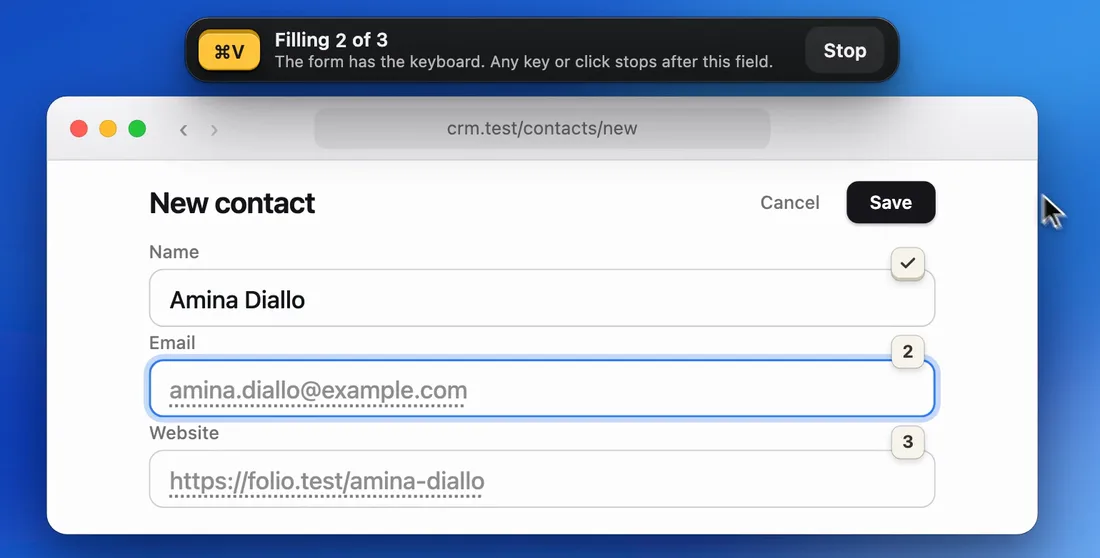
With Free, you press ⌘V in each field. With Pro, PasteHop goes from field to field and fills them for you. Any key or click stops it. It never presses Return, and it never presses Save.
Fill Forward… Your copies fill the form, field after field.
Destination Mode… Draw a box around a form, see what goes where, then fill. Text fields only, never a password.
Capture… Drag once over text on screen: each piece becomes a copy.
Paste What Fits In the Email field, it pastes the email.
Destination Mode, filling a form field by field. Redrawn from PasteHop's real screen.
What you copy stays on your Mac.
No account, no upload. The privacy page says the rest, in plain terms.
No account, no upload.
The app goes online for one thing only: to check a Pro license key.
It does not keep a copy that a password manager marks as secret.
PasteHop sees the mark and leaves that copy alone. A secret copied from an app that sets no such mark is kept like any other text: add that app in Settings › Privacy, under Excluded apps.
Switch PasteHop off, and ⌘V is the Mac's again.
The switch is called Flow, and ⌥⇧⌘F turns it on or off. While it is off, PasteHop stays out of the way.
No. On a Mac, ⌘V only pastes the last thing you copied, so you go back to the source for every single thing. PasteHop keeps every copy, in order, and each ⌘V pastes the next one.
Partly. Like a clipboard manager, it keeps a history of your copies, up to 500. The difference: you never pick from a list. Copy what you need, then press ⌘V until everything is pasted, in order. By default, the history is cleared when PasteHop quits.
Why does macOS warn me the first time? Is it safe to open?
Apple has not notarized PasteHop: that check needs a paid Apple developer account, and PasteHop does not have one. So your Mac cannot check the app for you, and says so. The warning means Apple has not looked at the app, not that something wrong was found. You confirm once. The install page shows what to click.
Is the free version limited?
Free keeps up to 500 copies, same as Pro, with no time limit. Free covers copying, pasting in order, and everything you do by hand with your copies: see them, reorder them, find one. Pro adds what PasteHop does for you.
Is Pro a subscription? Is there a trial?
Neither. Pro is $15, one time: yours for life, on all your Macs. There is no trial of Pro. The free version has no time limit, so you can judge PasteHop for as long as you like.
What can I copy?
Text, links, files and pictures. In the Finder, PasteHop pastes files: a text copy keeps its place in the order and waits.
What does it ask my Mac for?
Two macOS permissions, which it needs to work at all: Input Monitoring, so it can see when you press ⌘V, and Accessibility, so it can paste for you. In Pro, Capture asks for Screen & System Audio Recording, only when it reads the text in a picture. On macOS 27, Accessibility is called Device Control and Data Access. The privacy page says what each one is for.