
Clipboard history on a Mac.
Since macOS Tahoe 26, Spotlight can show what you copied earlier. Below are Apple's steps, then what PasteHop adds when you paste several copies in a row.
What your Mac does on its own
On macOS Tahoe 26 and later, Spotlight can search your clipboard history. Apple gives these steps:
- Press ⌘ and the Space bar to open Spotlight.
- Press ⌘4, or click the clipboard button to the right of the search field.
- Type what you are looking for.
- Select the item and press ⌘C. Then click where it goes and press ⌘V.
The first time, macOS may ask you to allow results from the clipboard. Apple adds a warning: “Sensitive information may appear on the Clipboard.”
To erase the history, click the button to the right of the search field, then choose Clear History. On macOS 27, Spotlight settings also let you choose how long the history stays visible: 30 minutes, 8 hours or 7 days.
Sources, from Apple Support: Search your Clipboard history in Spotlight on Mac and Spotlight settings on Mac.
One copy at a time
In Spotlight, you find one item and copy it again before you paste it. For one thing, that is all you need.
Now fill a form with a name, an email and a website. You go back to Spotlight for each one: find it, copy it, switch back, paste. Three fields, three trips.
PasteHop is for that moment. You copy everything first. Then each ⌘V pastes the next copy, in the order you copied them.
What PasteHop adds: the order.
The same ⌘C, the same ⌘V. PasteHop only changes what the next ⌘V pastes.
-
Copy everything you need.
Each copy waits its turn. A small bar shows the last one, and counts how many are waiting.

-
Click where the first one goes.
The key in the bar turns amber: your next ⌘V pastes your first copy.

-
Press ⌘V in each field.
Each ⌘V pastes the next copy. After the last one, the bar says so, and ⌘V works as usual again.

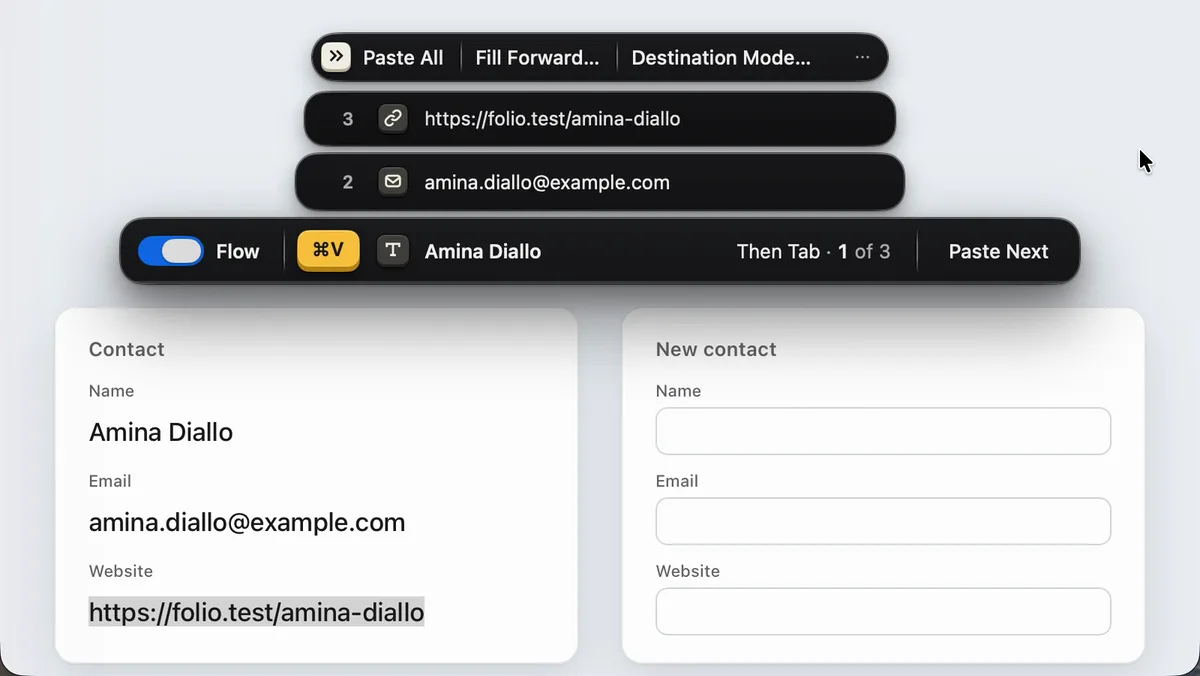
Your copies, where you can see them.
Click the bar and your copies open above it, numbered in the order they will be pasted. All of this is free.
- In order
- Each ⌘V pastes the next copy. Nothing to pick from a list.
- Reorder
- Drag a copy to another place, or set any copy as next.
- Find
- With many copies, the magnifier keeps only the copies that match.
- Free
- Free keeps up to 500 copies, same as Pro. No account, no time limit.
- On your Mac
- Nothing you copy is uploaded. When PasteHop quits, your copies are cleared, unless you choose to keep them in Settings.
- Your macOS
- macOS 14 or later.
Questions.
Not answered here? DM on X.
Does my Mac have a clipboard history?
Yes, on macOS Tahoe 26 and later: open Spotlight with ⌘ and the Space bar, then press ⌘4. The steps are at the top of this page.
Do I still need PasteHop then?
Only if you paste several things in a row, like the fields of a form or the cells of a sheet. To get back one thing you copied earlier, Spotlight is enough.
Does PasteHop keep everything I ever copied?
No. It keeps the copies of the task in front of you, up to 500, and clears them when it quits unless you choose to keep them. It does not keep a copy that a password manager marks as secret. The privacy page says the rest.
Is it free?
Yes, with no time limit. Pro adds what PasteHop does for you, like filling a whole form. It is $15, one time.
Try it on your next form.
PasteHop is a Mac app, and it is free. On your Mac, open pastehop.app.
Then follow the install guide: five steps, once.
- Version
- 0.3.0, October 9, 2026
- Requires
- macOS 14 or later
- Size
- 15.5 MB
- First open
- Not notarized by Apple. The steps